McKinsey officially requires a PC or Mac for Solve and runs a technical check through your assessment link before you start. It publishes no browser, hardware or internet speed numbers. If the check fails or the game freezes, contact Solve technical support when the problem happens by live chat or at [email protected]. Do not screenshot the assessment.
| Setup question | Answer | Status |
|---|---|---|
| Computer | PC or Mac; the assessment is unavailable on an iPad or phone. | Official Solve FAQ |
| Technical check | Runs through your link before Solve and reports whether the device meets minimum specifications. | Official Solve FAQ |
| Sound and mouse | Sound is unnecessary; a mouse is optional. | Official Solve FAQ |
| Languages | English, Spanish or Portuguese (Iberia or Latin America), or Japanese. | Official Solve FAQ |
| Browser, processor, memory, display and internet speed | McKinsey publishes no specific version, model, resolution or connection threshold for Solve. | Not published official sources |
The table is deliberately short. A number advertised as a minimum elsewhere cannot substitute for the check on your own link. The invitation guide helps you identify the personal link and instructions that govern your sitting; the test day guide covers the wider sitting from setup to submission.
What computer can run McKinsey Solve?
Officially, McKinsey Solve is available on a PC or Mac, not an iPad or phone; McKinsey does not publish a laptop model, operating system version or hardware threshold. That makes the technical check on your own link the useful compatibility decision. A newer computer can fail the check, and an older one cannot be declared suitable from its age alone.
- PCAvailable
- MacAvailable
- iPadNot available
- PhoneNot available
Official, Solve FAQ (August 2025): the assessment is only available on a PC or Mac. McKinsey names the two platforms, not a model, age or form factor, so the drawings are generic.
Start with the machine you intend to use. Make sure you can sign in, keep it powered and reach the invitation link. This is our preparation advice, not a McKinsey equipment rule. For example, a candidate with a work laptop and a personal Mac should run the check on the chosen machine rather than assume either qualifies because of its brand. An employer-managed laptop is a common case for candidates already in a job, which the guide to Solve for experienced hires covers. If the check rejects it, send the failure wording to support before starting. Do not treat the other machine as a safe mid-session substitute without asking support.
McKinsey also says sound is unnecessary and a mouse is optional. A silent laptop or trackpad is therefore not, by itself, a reason to buy equipment. If a required control does not respond on your setup, that is a specific fault to raise. For the full room and rules checklist, use the test day walkthrough.
Which browser and internet speed does McKinsey Solve require?
McKinsey does not publish a required browser, browser version, bandwidth, latency or screen resolution for Solve; its official technical check is the published way to assess your setup. Treat any precise browser or speed number you find elsewhere as unverified, even if it sounds plausible. A successful third-party speed test would not prove that your assessment link will work.
Official McKinsey states
- Computer
- PC or Mac
- Technical check
- Runs on your link before Solve starts
- Sound
- Not necessary
- Mouse
- Optional
- Languages
- English, Spanish, Portuguese or Japanese
Not published No figure exists
- Browser or browser version
- Operating system version
- Processor or memory
- Screen size or resolution
- Internet speed or latency
- Approved connection type
Our advice Not a McKinsey rule
- Run the check on the computer you will sit the test on
- Keep that computer on mains power
- Use the connection you already know is steady
- Leave the browser as it is: no installs the night before
- Buy nothing to meet a number McKinsey never published
Left column: McKinsey's Solve FAQ (August 2025). Middle column: items for which the Solve page, the FAQ and the integrity page give no name or number, checked October 11, 2026. Right column: our own preparation advice.
Our advice is to use a connection you know is steady, keep your computer on power and avoid changes to the browser immediately before the sitting. These steps reduce avoidable uncertainty, but they are not McKinsey specifications or a guarantee against a platform fault. A wired connection can be useful if it is already available and reliable. Do not buy a cable, change networks or install a new browser solely to meet an unpublished rule.
Consider a blank page on the planned computer. It might be the link, the check, your network or something else; McKinsey does not publish a diagnosis tree that lets a reader identify the cause from appearance alone. Tell support exactly what the screen shows and let it run diagnostics on your link. If the issue appears before the assessment starts, the same support route applies. For timing details in the invitation, see what invitation lengths can and cannot tell you. For quick answers to neighbouring setup questions, the Solve FAQ with 30 short answers is faster to scan.
What does the McKinsey Solve technical check confirm?
Officially, the McKinsey Solve technical check opens after you click your assessment link and tells you whether your device meets the minimum specifications before Solve starts; McKinsey does not publish its individual checks or thresholds. A pass is useful evidence about that device at that moment. It is not a promise that the game, network and power will remain fault-free.
Official, Solve FAQ: the check follows your link and precedes Solve, each task starts with an untimed tutorial, and support handles failed checks. Keeping the same setup after a pass is our advice. McKinsey does not publish what the check tests.
Use the check as a decision point. If it passes, follow the instructions on your link and keep the same setup for the sitting. If it fails, capture the on-screen wording in a written note outside the assessment, then contact support. If the link has a separate practice or precheck route in your invitation, follow its instructions. The public FAQ does not say that opening the assessment link a day early is always harmless, so do not advance through an unknown start screen just to test it.
McKinsey says each task begins with an untimed tutorial. The tutorial explains the objective and navigation, while the earlier technical check addresses device suitability. Use both for their stated purpose. A practice game may familiarize you with reading exhibits, but only your McKinsey link can give you the real check. The Solve overview explains the assessment at a higher level, and what Solve measures in each game explains what the tutorials are preparing you to do.
How should you prepare your setup the day before?
Our recommendation is to prepare the device, connection, power and support route the day before McKinsey Solve, while using your invitation and official check for the actual requirements. McKinsey recommends a slot without interruptions but does not prescribe a day-before procedure. This list is a way to find ordinary problems while you have time to ask for help.
Device
- The PC or Mac you will use on the day is the one in front of you
- Charger plugged in and working
- Keyboard and trackpad respond. Sound and a mouse are not needed Official
Link and instructions
- Personal link, stated length and instructions found in the invitation
- A separate pre-check used only if your invitation offers one
- No clicking past an unknown start screen just to test it
Connection
- The connection you normally trust, not a new one
- Browser left as it is: no new installs or updates by choice
Support and room
- [email protected] written on paper beside the computer
- A slot booked where nobody will interrupt you Official
- Other applications, websites, AI tools and prepared notes closed or put away Official
Stop rule An unclear link or a failed check is a stop. Ask Solve support before you retry or change device.
Lines tagged Official restate McKinsey's Solve FAQ. Every other line is our own preparation advice, not a McKinsey timetable. If your invitation gives different setup instructions, follow the invitation.
A quiet rehearsal on the planned computer can expose your own power or display inconvenience. It cannot certify McKinsey compatibility because an independent practice runner uses a different service. If your invitation gives only a short window, perform these checks as soon as you can and follow the prep plan for the remaining time. Deadline changes are recruiter questions, not assumed results of a technical ticket; the guide to Solve deadline extensions and late starts covers how to ask. The invitation guide covers how to read the link, stated length and instructions the first checks rely on.
What should you do in the first two minutes if Solve freezes?
Officially, you should contact McKinsey Solve technical support when a freeze arises, by live chat or at [email protected]; McKinsey gives no two-minute script, so the order below is our advice. Start reporting the fault rather than spending that time trying unverified recovery steps. The support team can run diagnostics on your link.
- Stop clicking and note the timeOur advice
- Do
- Write the clock time, what you were doing and what the screen shows, on paper.
- Do not
- A photo, screenshot or recording of the screen. McKinsey bans those captures.
- Contact Solve support nowOfficial
- Do
- Use the live chat, or email [email protected]. Say the fault is happening during your sitting.
- Do not
- Waiting to see whether it clears. No contact means no exception for a reset.
- Follow the instruction you are givenOur advice
- Do
- Leave the session as it is until support says to refresh, reconnect or change device.
- Do not
- Guessing a recovery order. McKinsey publishes none.
The two-minute framing and the order are our response plan, not a support service-level promise or a claim that the assessment timer pauses automatically. The support route, the capture ban and the no-contact rule are from McKinsey's Solve FAQ.
A useful written report has a small number of parts, and none of them is assessment content. The original, fictional example below shows each one.
To: [email protected] or the live chat
- My Solve screen stopped responding while I was selecting an answer.
- What you were doing
- The cursor moves, but the button does nothing.
- What the screen does
- It began at 14:07 in my local time.
- When it began
- I have left the assessment open.
- Current state
- Please advise.
- The ask
Original, fictional example written for this guide. The time is invented. Left out on purpose: any question, exhibit or answer from the assessment, and any image of the screen.
The details describe the symptom, not the assessment's confidential content. If live chat is inaccessible, send the same information by email immediately. You can tell your recruiter about the disruption afterward, but the FAQ directs technical issues to support at the time they occur.
What if the tech check fails or the assessment link becomes unreachable?
Officially, McKinsey directs failed Solve tech checks and other assessment faults to technical support when they happen; it does not publish a universal refresh, reconnect or device-switching procedure. The correct next action depends on what is still accessible. Use the invitation's instructions and the contact route that remains available.
Solve technical support
- Failed technical check
- Frozen game, image or control
- Link that will not load
- How
- Live chat or [email protected]
- When
- When the fault happens
Your recruiter
- Deadline or scheduling question
- Accommodation request
- Anything about your application
- How
- The contact in your invitation
- When
- As early as you can
Official division from McKinsey's Solve FAQ: technical issues go from you to support, non-technical questions and accommodations go to your recruiter. Asking the recruiter early is our advice.
| What you observe | Immediate action | Evidence boundary |
|---|---|---|
| Tech check says the device fails | Contact Solve support with the written failure message before proceeding. | Official support handles failed checks; no public numeric fix list. |
| Game image or control is frozen, chat still opens | Use live chat at once, state the time and symptom, and follow the support instruction. | Official support route; no guaranteed automatic recovery. |
| Link or chat cannot be reached | Email [email protected] promptly from an available device, describing the fault in words. | Official email route; no published offline procedure. |
For example, if your home network drops and the assessment page cannot load, email support when you regain a connection from an available device. Say when access failed and what the browser displayed, without copying assessment content. Do not infer that the session saved your last answer, that refreshing will restore it or that changing to a hotspot is always safe. McKinsey has not published those recovery guarantees. If the fault has eaten into a short invitation window, a deadline question still goes to your recruiter: see how deadline extensions and late starts work. For a broader test day sequence, follow the test day guide.
Will contacting support cost time or guarantee a reset?
McKinsey's official Solve FAQ says contacting support about a technical issue will not cost you time and that support may give extra time or reset your link depending on the issue; it does not guarantee either remedy in every case. The same FAQ says it cannot make a reset exception if you experience a technical issue but do not contact support. Contact them at the time, even if the fault looks temporary.
Wait and mention it later
Hope the screen recovers, finish what you can, then tell your recruiter afterwards.
Official: if you have a technical issue and do not contact support, McKinsey says it cannot make an exception for a reset.
Contact support at the time
Open the live chat or email [email protected] while the fault is still happening.
Official: you do not lose time for contacting support, which may give extra time or reset your link depending on the issue. Neither is guaranteed.
Both outcomes are from McKinsey's Solve FAQ (August 2025). It does not say that the game clock stops by itself when a fault begins.
Think of the policy as a decision for support, not a candidate-controlled restart button. You report what happened, support diagnoses the link, then tells you what happens next. The FAQ does not say the displayed game clock automatically stops at the moment of failure or that a later message to a recruiter replaces contacting technical support. A written note with the local time and visible symptom helps you explain the issue without taking a prohibited capture.
If you have already sent a report, keep the reply and follow the instruction given for your session. If you have only an application or deadline question, contact your recruiter instead. The timeline guide covers post-assessment waiting; a delayed recruiting reply is different from a live technical fault. A link reset by support after a fault is also not a second attempt after a result: McKinsey publishes no retake rule, and the guide to retake and reapply rules sets out what is and is not known.
Are screenshots, extra screens or outside tools allowed during Solve?
Officially, McKinsey bans screenshots, recordings, outside applications, websites, AI tools and prepared notes during Solve except for a disability accommodation approved in writing; its general assessment rules call for one screen, while the Solve FAQ gives no camera-specific requirement. That includes taking a screenshot of an error as “proof.” Describe the fault in words and let support inspect the link.
Prohibited
Screenshot, photograph or screen-record the frozen screen as proof.
McKinsey's Solve FAQ bans recording or screenshots of any part of the assessment and gives no troubleshooting exception.
Allowed
Write the time and the symptom on paper, then describe them to support in words.
Support can run diagnostics on your link, so words are enough. Pen and paper are the note-taking tools the integrity page names.
McKinsey's Solve FAQ supplies the capture rule and the support route. The wording of the report is our own example.
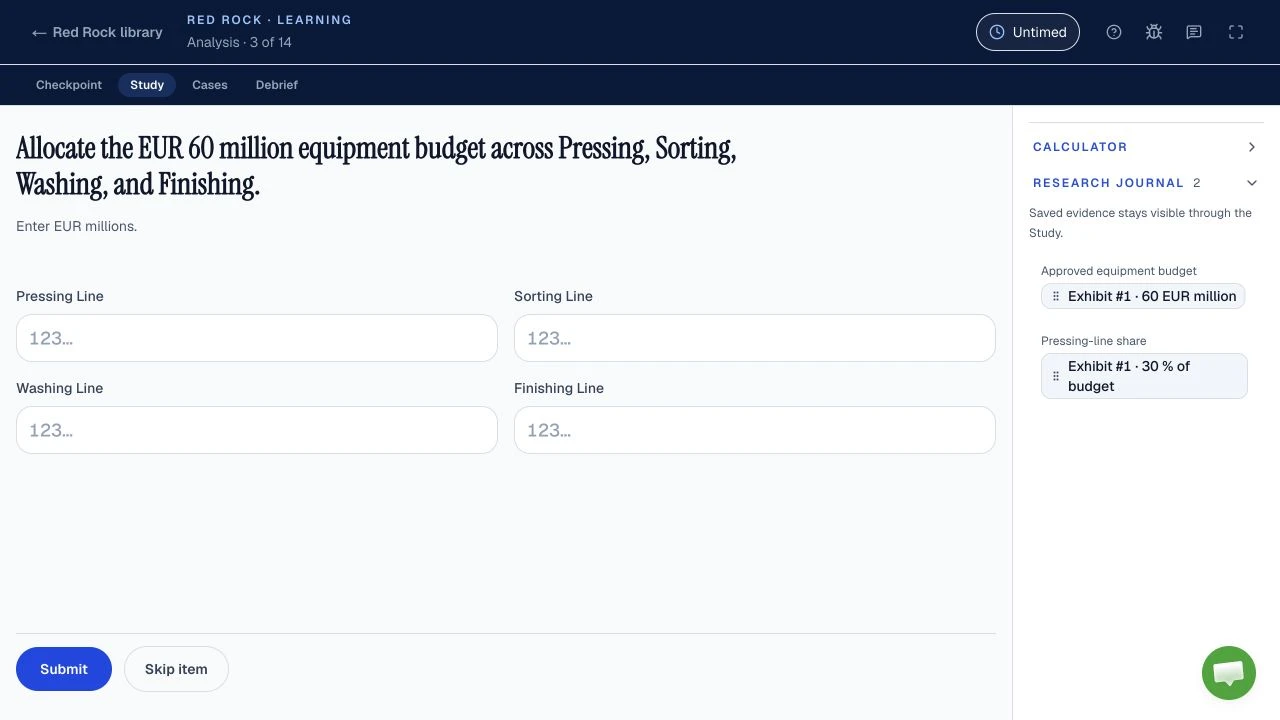
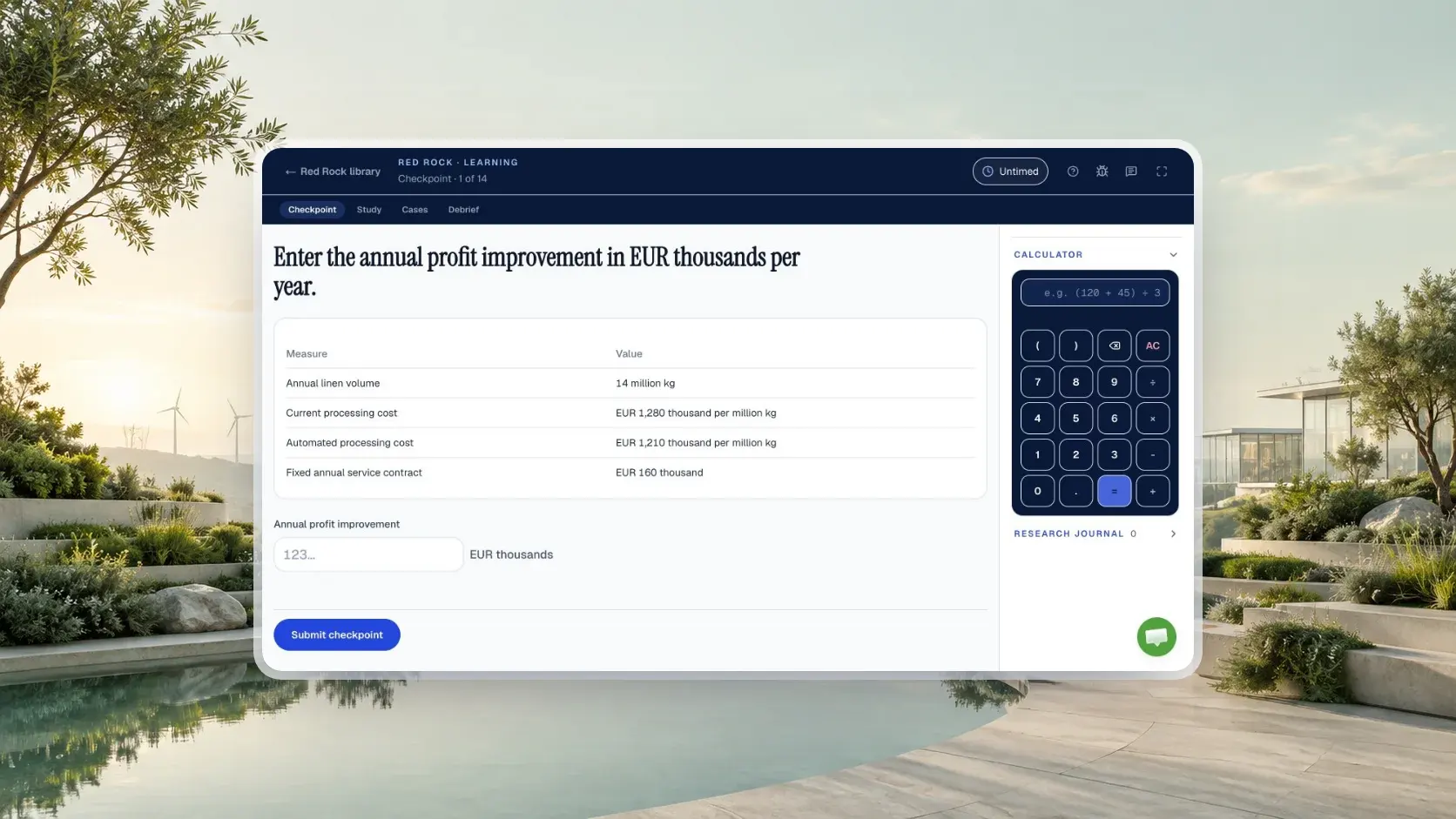
McKinsey's separate integrity page applies to assessments generally and calls for one screen, camera visibility and pen and paper for notes. The Solve-specific FAQ does not state a webcam requirement, so follow your invitation and ask your recruiter if it is unclear before starting. A reported on-screen calculator in a game, if present in your version, is different from an outside calculator application; use only the built-in tools as instructed. The guide to the Red Rock calculator and journal covers that reported tool. The Solve tips guide handles preparation strategy, while this rule governs the live session.
How can you rehearse on the same device without mistaking practice for the official check?
Our advice is to try an independent Red Rock practice run on the PC or Mac you plan to use, then rely on McKinsey's own tech check for actual eligibility; practice cannot certify the live assessment. Road to Offer's free Red Rock run includes the full Study and six standalone Cases, with 13 scored responses worth 36 points and a 35-minute practice clock. Start without an account, then create a free account to finish and keep your score and worked debrief. No payment is needed for the first run or its review, which shows where points went and feedback on each submitted decision, including highlighted calculations and charts. It is independent practice, not the McKinsey test or a prediction of your score.
Keep the two activities in their proper time. Before the sitting, open free practice and note any practical inconvenience such as a cramped display or unreliable power. The Red Rock practice method shows how to turn one attempt into a useful review. During the live assessment, close outside practice pages and follow McKinsey's own tools and tutorial. If your invitation lists a different game, use its instructions rather than assuming the practice interface will match. For the other reported games, the Sea Wolf guide and the Sustainable Futures Lab guide describe what candidates see, and Red Rock versus Sea Wolf helps you choose which to rehearse first.
Road to Offer offers one complete run free in each of four practice formats: Red Rock, Sea Wolf, SFL Classic and SFL Island. Sea Wolf includes all three sites and four stages per site on a 30-minute Simulation clock; Classic includes all 13 linked decisions without a countdown; Island includes onboarding and all three project days on a 30-minute Simulation clock. Their free worked reviews include constraint and treatment visuals in Sea Wolf, decision and dependency diagrams in Classic, and evidence chains, placement maps and team feedback in Island. Learning mode adds a step-by-step path with coaching and feedback as you go across all four formats, untimed in the clocked games; it is paid access included with the matching game pack, the Solve pack or qualifying Annual access. For scheduling, the separate Solve plan is free with a free account and uses your invitation length and test date to select dated practice steps for up to 28 days.
If you want the full preparation order, the Solve prep plan covers what to do before the invitation window closes. After you submit, questions about scores belong in the scores and results guide, not in technical support. Neither practice nor this guide replaces the personal instructions in your invitation.
Sources and evidence boundaries
- Official, checked October 11, 2026: McKinsey Solve FAQ (August 2025 PDF) for PC or Mac, the technical check, sound, mouse, languages, support, time remedies and the no-contact/no-reset rule.
- Official, checked October 11, 2026: McKinsey's Solve page for the assessment and support route; assessment integrity expectations for the general one-screen, camera and tool rules.
- Not published in those sources: minimum browser version, operating system version, processor, memory, bandwidth, latency, screen resolution, an automatic save or restore rule, a fixed retake window, or a Solve-specific camera requirement. The tech check and your own invitation determine what to do for your sitting.
- Our advice: the day-before preflight, the first-two-minutes response order and the sample report are original editorial guidance, not McKinsey specifications or a promise of recovery. No unverified candidate report is needed for the requirements on this page.